The Tags step finds the right titles, artists, albums, record labels, years, genres and covers for your music. Solco recognises each track by its sound and its tags, then proposes what the music catalogues MusicBrainz and Discogs know about it. Nothing is written to your files until you apply it, and your audio is never touched.
Look up your tracks
Click Tags in the sidebar. The first time, click Find tags for 4,210 tracks (it says how many), or Only the ones missing tags to leave alone tracks that already have a title, artist, album, year, genre and cover.
Lookups run in the background while you keep working, and results arrive in small groups, a thousand tracks in about a minute. Covers are found separately and more slowly, with their own line in Activity: one line for the whole run, which ends by saying how many covers were found and why any didn't download. While Solco Vault can't answer, lookups use the public catalogues, which are slower, and the progress line says so. Pause and stop are on the progress line and in Activity; stopping keeps the matches already found.
To look up more later, use Find tags at the top of the page. Choose which tracks (Not looked up yet, Selected tracks or Every track), whether to look only at Only tracks missing tags or Covers only, and which catalogues to ask. In the track list, right-click tracks and choose Find tags and covers… to look up just those.
You do not need to select tracks to look up your library. After opening Solco, Tags may first restore your saved reviews, including checking older matches against their files. The page shows progress and tells you when Find tags will become available.
What the tabs mean
- To check: a match that needs your decision, with the reason: Title differs or Artist differs (it may be a different song), Different remix, Different version (a radio edit for an extended mix, say), Different length, or the rest, such as a weak match or close editions. Hover the reason for the details; click the Why heading to put what changes most first.
- Ready: a strong match with nothing to decide.
- No match: nothing found, the lookup failed, or you said None of these to its matches. A track Solco Vault doesn't know, such as a release from this week, has already been asked of the public catalogues by itself before it shows here. Try again, on the progress line, looks up the failed ones once more. Look up again, or a search with your own words in the review, asks once more, the public catalogues included.
- Tagged: tags written and checked.
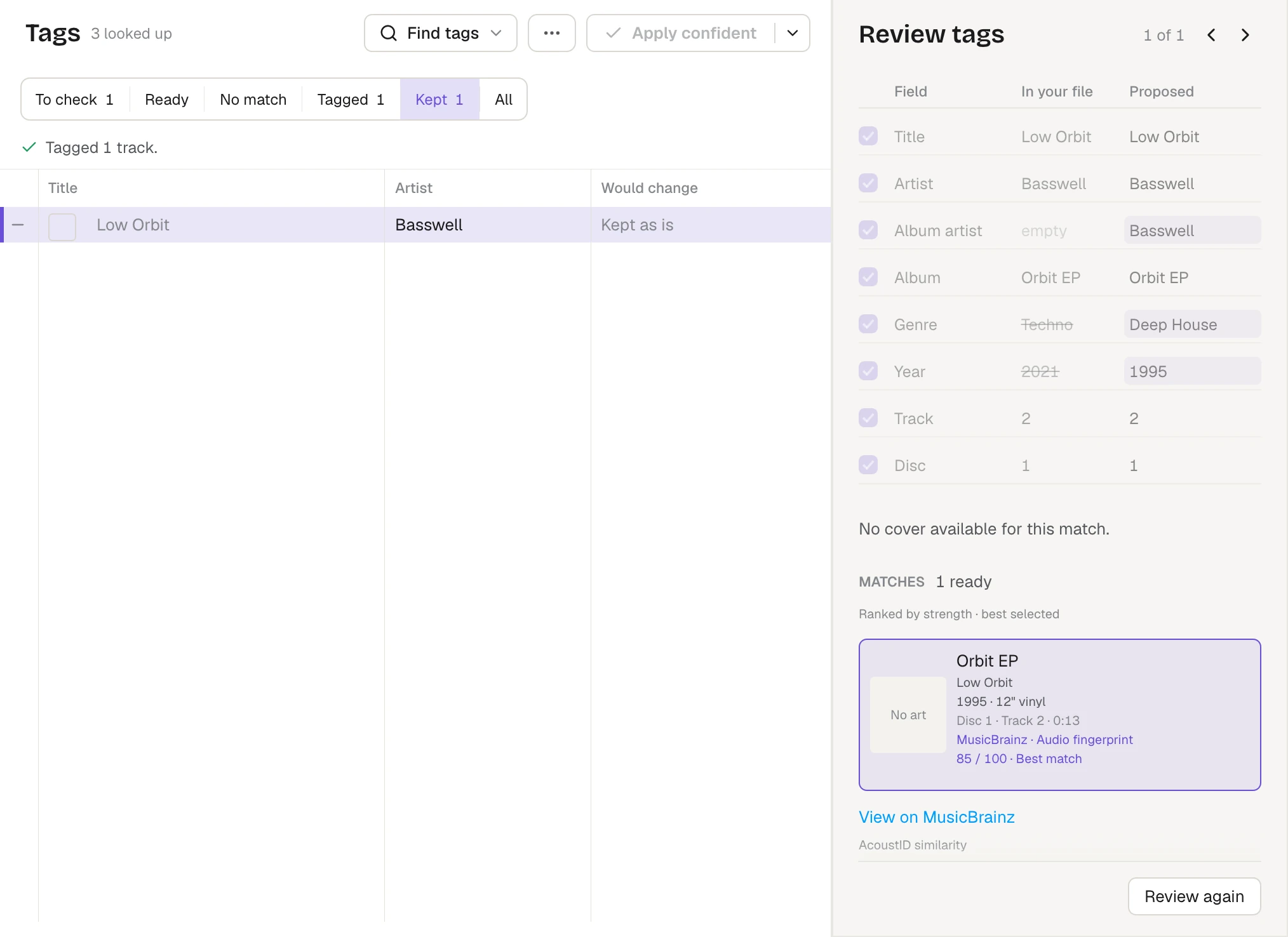
- Kept: tags you marked Correct as is, or that already matched. These decisions survive closing Solco. Select a track and choose Review again to reopen its proposal.
- Covers: looked up, and Solco is still finding the cover. A track moves on by itself to the tab its match earns as soon as the cover is found or Solco knows there isn't one. To move it on sooner, open it and click Use no cover, or choose Use no cover under Covers in the ⋯ menu for several. Files that already have a cover never wait here.
- All: every track.
Solco asks Solco Vault, its own catalogue, first: see "Solco Vault, Solco's own catalogue". If it can't be used, because it asks you to update Solco or because your licence's fast tagging has ended, the line under the progress says why, and tagging carries on with the public catalogues.
The Match column ranks how well the evidence fits, from 0 to 100. It isn't a percentage or a chance of being right. Every tab lists the strongest matches first until you sort by another column.
Would change sorts by how many ticked fields would change, counting a cover as one. Equal counts sort alphabetically by the changed field names. Click the heading to reverse the count, or its Sort again arrow to reorder after reviewing more tracks.
Apply the confident ones in one go
Apply confident writes every track in Ready, whatever is selected. Its menu sets the Minimum match (90 to start with), Keep applying as lookups finish, which writes tracks the moment they become Ready while Solco stays open, and Add missing covers, which adds the release's cover to tracks without one. Turn Keep applying off and only tracks already looked up are written; the rest wait for your next click. A different song, close editions, your own edits and a cover that would replace yours always wait in To check, whatever the minimum.
A file that can't be written is tried once. It waits in To check with Write failed under Why, and hovering that or opening the track says what went wrong. Fix what stopped it, then click Apply on the track. A track that was written stays in Tagged.
Applying never slows the lookups down. While both are running the page shows them on two rows, each with its own count, pace and Stop: tracks a second for the lookups, files a second for the writing. Writing takes longer the bigger your files are, because Solco checks every file after writing it, so it is normal for the lookups to finish well ahead of the writing. One Apply confident is one Undo, however long it runs.
Review a track
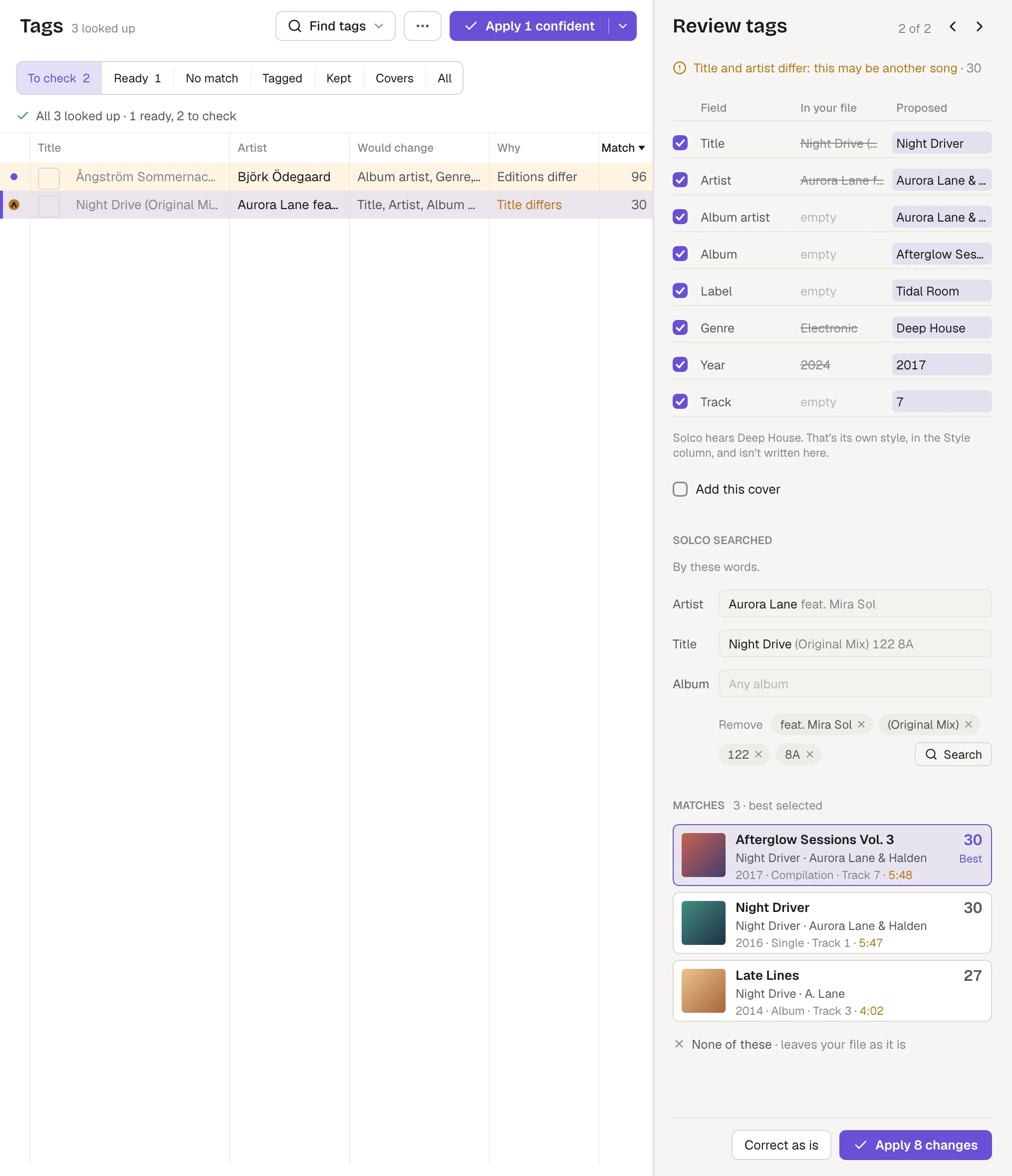
Select a track and the Review tags panel shows, from the top: why the track needs a look, what would change, what Solco searched for, and what it found. Long titles need room: drag the panel's left edge to widen it, up to three fifths of the window, and Solco remembers the width. A value that is still cut short reads in full when you hover it.
- The first line says why the track is in To check, with its Match number: Title differs: this may be another song, Different remix: check it's the one you have, Weak match: 85, Ready needs 90, and so on. A strong match says Strong match: Apply confident would write it. Hover it for the details.
- Each field shows In your file and Proposed, with the values that would be replaced struck through. The chosen edition's offered fields start ticked, including its record label. Untick a field to keep your own tag, or edit the proposal right there. Saved reviews remember your choices.
- Genre is the catalogue's genre: the release's styles on Discogs, such as Deep House. Under the fields, Solco hears… shows Solco's own style, the one in the Style column. That one is never written by a review; use Suggest genre from style or Write style to genre tags… for that.
- Add this cover is ticked when the match has a cover and your file has none; untick it to keep the track without it. A cover your file already has stays unless you tick Replace your file's cover with this one. If you pick another match and its cover hasn't been fetched yet, the track waits under Covers until it arrives, or until you click Use no cover. You never get the last match's cover by mistake. If a cover can't be downloaded, the track moves on and Try again sits where the cover would be. A release with no cover of its own may propose its album's, from another edition. You see it here before anything is written.
Find the right song
Under the changes, Solco searched shows the artist, title and album Solco looked for: first by the track's sound, then by these words. You can change them right there.
- Words that get in the way of a search, such as feat. Mira Sol, (Original Mix), a BPM like 122, a key like 8A, a catalogue number or a web address, are drawn dimmer, and each has a Remove chip under the fields. Click the ones you don't want. A remix such as (Basswell Remix) is offered too: it's another recording, so removing it finds the original.
- Removing words doesn't search yet, so you can remove several first. Then press Enter or click Search. Solco searches every catalogue you have set up with your words, also trying them without the mix name and without featured artists.
- While it searches, the earlier matches stay, dimmed. Esc stops the search and keeps them. If nothing is found, the earlier matches stay too.
- Esc in a field puts back the words last searched, and the arrow beside Your search goes back to Solco's own words.
Choose a match
If there is more than one match, each release is a card with its cover, release, title and artist, year, track number and length, ranked with the best one selected. A length more than five seconds from your file's is shown in amber. Click a card to use it. Hover a card for where it came from, and right-click it to see it in the catalogue. With five or more matches, a filter narrows them by release, year or label.
None of these, under the last card, is for when no match is your track. The track moves to No match, its file stays exactly as it is, and Solco won't suggest those releases for it again. Open it in No match to search with other words, or click Show them again to bring the matches back. Ctrl+Z (Cmd+Z on a Mac) takes it back too.
Apply or keep
Apply 3 changes (it says how many) queues the ticked changes and moves to the next track. Keep reviewing and applying as quickly as you like; each file is checked, and Solco writes as many at a time as the drive takes well: up to eight on your computer's own fast drive, two on a network share or spinning disk, and one at a time on a USB stick or card. A file that cannot be written returns to To check with its proposal and error, without moving you away from your current track. Correct as is keeps your tags, remembers your decision and moves on.
Select several tracks to review them together: the panel says how many would change and which need a look, and Apply 12 tracks queues each one's ticked changes behind any files already being written. You can apply a long selection without waiting for earlier saves. A track that may be a different song (its title or artist differs) is left out unless you tick Include beside it. A different length alone doesn't count.
The ⋯ menu acts on the selected tracks: apply them or keep their tags as they are, Use the best matches, Use every proposed field, Covers (including Save missing covers only), Look up again and Suggest genre from style, which proposes the style Solco hears as the genre.
From the keyboard: Enter applies and moves on, S marks the tags correct as they are, N puts the cursor in the search's title, 1 to 9 choose a match, and Ctrl+Enter (⌘↵ on a Mac) applies the selected tracks. In a search field, Enter searches and Esc puts the words back.
Writing tags in Activity shows progress, including when files are waiting behind another operation. Stop finishes the files under way and returns the rest to review. Quitting normally waits for accepted writes to finish. If Solco is interrupted, the proposals return for you to apply again.
Every write changes a copy of the file first and checks that the audio is exactly the same before it replaces the original. See "Tags and keys in your files". Your choices and downloaded covers are kept when you close Solco, and lookups you paused wait until you resume them.
Undo a change to your files
Whatever Solco writes to your files can be taken back: tags applied here, styles written to the genre, comments, keys, BPM, covers and edits in the tag editor.
- Right after Solco writes, a small banner at the foot of the window says what changed, such as Wrote tags to 24 tracks. Click Undo to put those files and your library back exactly as they were. The banner then offers Redo.
- Ctrl+Z (Cmd+Z on a Mac) undoes the last change and Ctrl+Shift+Z redoes it, when you're not typing in a field. That includes None of these, which brings the track's matches back.
- Activity lists your recent changes to files, each with Undo, so you can take back an older one.
Tracks you tagged here go back to To check when you undo, so you can decide again. If another app, or a later change in Solco, has changed a file since, Solco leaves that file as it is and tells you how many it left. Undo the newer change first to take those back too. Solco keeps the last 50 changes, for up to 30 days and 512 MB in all.
Catalogue keys
MusicBrainz works without a key. Two optional keys make lookups better; add them in Settings › Tags & covers, under Catalogue lookups:
- AcoustID: an application key, so Solco can match tracks by their audio fingerprint, a short code computed from the sound, when Solco Vault is off or can't be reached. With Solco Vault on you don't need one: it matches fingerprints with its own copy of AcoustID's open data. Click Get one, register an application on the AcoustID site, paste its key and click Save.
- Discogs: a personal access token from your Discogs settings, to look up tags on Discogs too.
Keys stay on your computer. See "Privacy, error reports and diagnostics" for what a lookup sends.
Edit tags yourself
Right-click a track and choose Edit tags…, double-click it, or press Ctrl+E (⌘E on a Mac) for the track on the deck. Change the title, artist, album artist, album, label, genre, year, track and disc number, BPM, key or comment, and click Save to file (or press Ctrl+S, ⌘S on a Mac). Click the cover to choose another image, and Find tags and covers… looks this track up.
A key you type here always wins over the key Solco hears. See "Tags and keys in your files".