The assistant plans a gig with you from the music you already have. Tell it about the night, and it proposes a folder of playlists: the parts of your set in playing order, and a few side lists to dip into. Nothing is added to your library until you create the folder. It can also change a playlist you already have, and only when you update it after seeing exactly what changes.
Ask for a plan
Click + beside Playlists and choose Playlist assistant…, or click the sparkle just after +. If the sidebar is folded, its Playlists prep step also opens the assistant. Describe the gig in your own words: the hours, the crowd, the music, anything to avoid. For example: "Four hours of disco from 10pm, funky openers building to peak disco, with detours into house and italo."
Click All tracks to close the assistant and return to the library. The player returns to its usual layout, including a layout you chose yourself. Your conversation and any work in progress stay available when you reopen the assistant.
While it works, the assistant looks through your library: which styles and genres you have, their tempos and energy, and real tracks that fit. It goes by style first, Solco's own reading of how each track sounds, because it is the same for every analysed track, and uses your genre tags when you ask for a genre by name or a track has no style yet. It checks its plan before showing it, so the counts you see are what your library holds now. If something important is missing, such as how long you play, it asks one short question first.
Review the plan
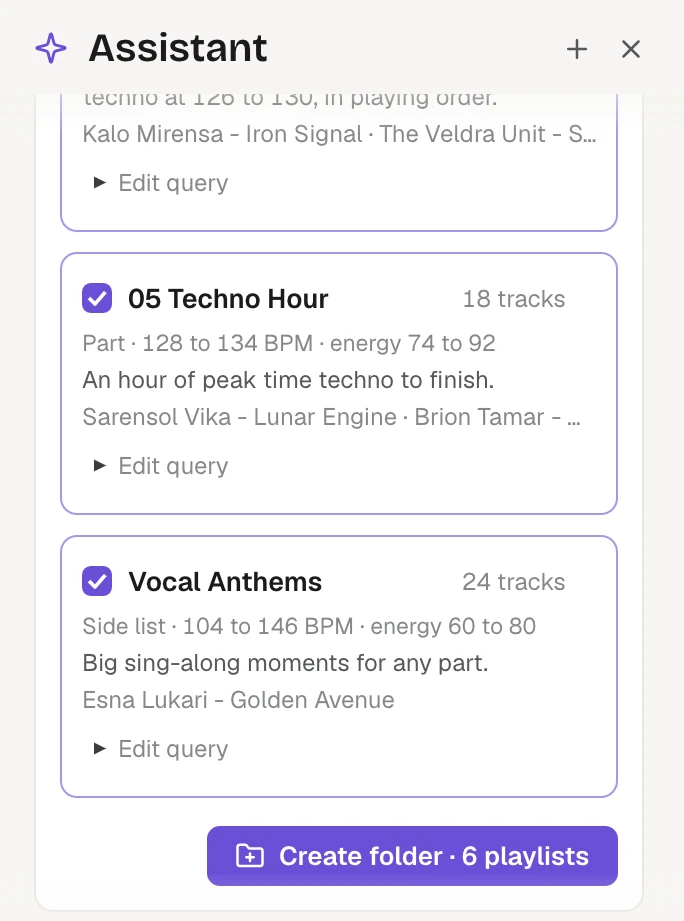
The plan is a folder named for the night. Each playlist in it shows:
- whether it is a Part of the set or a Side list, and whether it plays in playing order;
- how many tracks it holds, their BPM and their energy;
- why it is there, and its first tracks (hover them to see more).
Every playlist the assistant makes is a Smart Playlist: its rules decide which tracks it holds, it keeps updating as your library changes, and Edit query shows the rules. When the order matters, such as an opener or a bridge from one style into another, the assistant also sets the playing order: those tracks play in that order, and any track that matches the rules later, such as new music you add, joins at the end. Edit the rules and the order keeps the tracks that still match.
Change what you like before creating it: rename the folder or a playlist, edit a query (the count updates when you click away), or untick a playlist to leave it out.
Change it by talking
Under the plan are next steps for this plan, such as "Make the metal part shorter" or "Add a 128 to 132 BPM bridge". Click one to put it in the message box, or write your own. The assistant changes the plan it made and keeps the parts you did not mention.
Create the folder
Click Create folder. Solco adds a new folder under Playlists with the ticked playlists in order. It never replaces or changes an existing playlist or folder, even one with the same name. Play the parts from the deck to check them, and export the folder like any other.
Change a playlist you have
Ask for a change to one of your playlists by name, in the same message box. For example:
- "Make my Sunday afterhours playlist build more slowly"
- "Swap out the vocal tracks in Nu Disco Brunch"
- "Add ten more tracks like the opener to Peak Hour"
- "Tighten the keys in my tech house mix"
- "House Classics is too long, cut it to 90 minutes"
- "Reorder Peak Hour for a smoother energy curve"
The assistant finds the playlist by its name or folder, reads it, looks for tracks in your library when it needs more, and proposes the whole playlist as it would be. If more than one playlist could be meant, it asks which. It only changes the playlists you name.
Under its reply, a card for each changed playlist shows its tracks and length before and after, how many tracks are added, removed and moved, the new order with new and moved marked, and every track that would be removed, struck through.
Nothing changes until you choose:
- Update playlist changes that playlist as shown, and nothing else. Undo beside the confirmation puts it back as it was. If the playlist changed after the review, for example because you edited it, nothing is updated: ask again.
- Save as new, for a Smart Playlist, leaves it alone and adds the change right after it as a new Smart Playlist, named with "refined".
A Smart Playlist is changed through its rules and its playing order, and the card shows the new rules and the tracks they select now, in order. A playlist you made yourself, with tracks you added by hand, stays that kind of playlist: the assistant changes its tracks and their order, and Update playlist is the only choice, since the assistant only ever creates Smart Playlists. If it offers rules for one of those, you can save them as a new Smart Playlist instead. It changes playlists of up to 200 tracks you made by hand; for a longer one, ask it for a new Smart Playlist. Tracks whose files are missing stay where they are.
The assistant changes Solco's own playlists, including ones you imported from a USB drive or rekordbox. It never changes a USB drive: to update the drive, put the playlist on the USB again.
What it can and cannot do
- It plans from your library only. If you ask for a style you barely have, it says how many tracks there are and suggests the closest night you can play.
- It reads what Solco knows about each track: title, artist, genre, style, BPM, key, energy, Feel and the other characteristics, rating and colour, and when it changes a playlist, each track's length. It does not hear the audio, so play what it suggests before the gig.
- Sending it a message is what shares your request, the conversation and the names and details of the tracks and playlists it looks up with Solco's service, as the line under the message box says; never audio or file paths. There is nothing to tick first.
- It is automated, and its suggestions can be wrong: nothing changes in your library until you create the folder or update the playlist.
- It is part of the private beta. Your licence key turns it on, on up to three computers; there is no separate code. An invite code you already have still works under Connection.
- Each computer can send the assistant up to 40 messages a day, and has a monthly allowance on top, which covers a few hundred messages. A long plan uses more of it than a short question. The day starts again at midnight UTC, and the month on the first. When an allowance is used up, the assistant says its limit is used up for now: try again later. The assistant is also shared by everyone in the beta, so on a busy day it can ask you to try later before your own allowance runs out.
- If the assistant asks you to update Solco, update it and send your message again. See "Updating Solco". Your library, playlists and USB drives work the same either way.
For what is sent and to whom, see "Privacy, error reports and diagnostics".