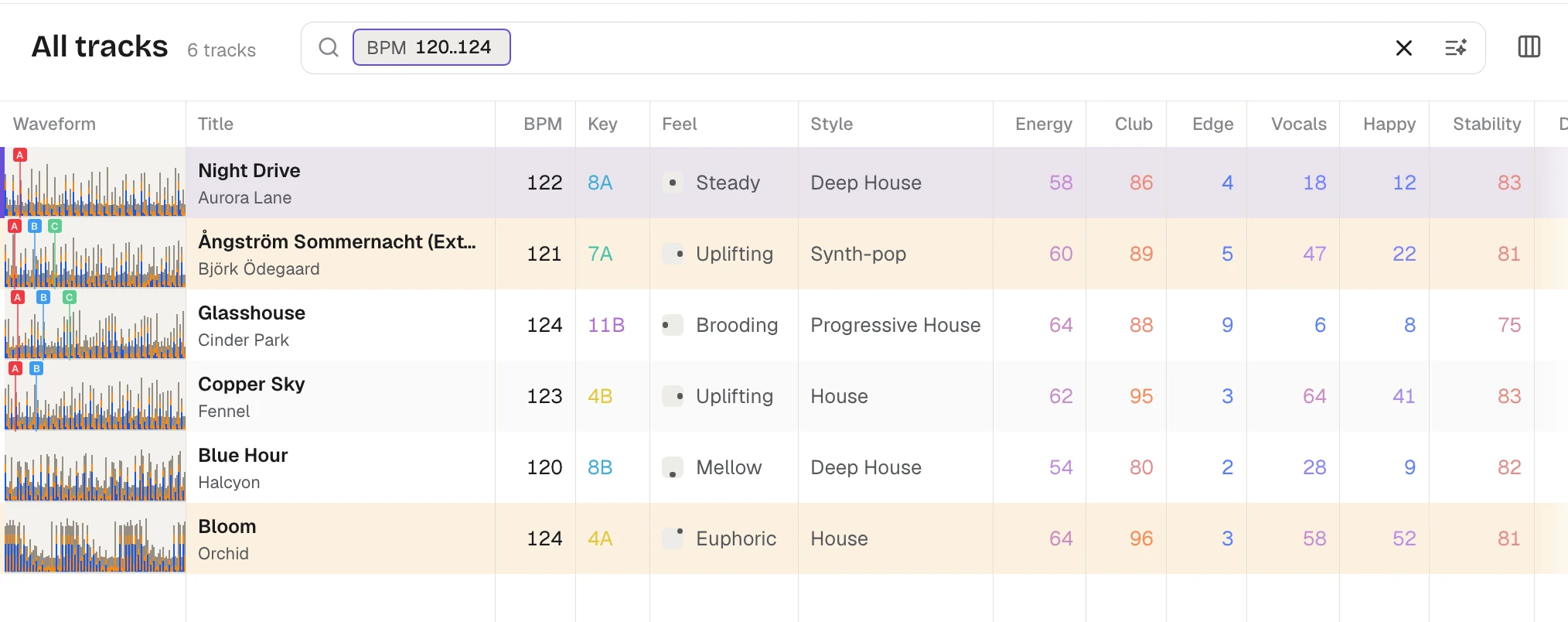
The search field above the track table narrows the table to the tracks that match. Click it, or press Ctrl+K (⌘K on a Mac), and type words, rules, or both.
Words
A word finds tracks whose title, artist, album, genre, comment or style has a word starting with it: moon finds "Moonlight" and "Blue Moon".
A key typed as a word, the way the Key column shows it, also finds tracks in that key: 8A, Am, 1m and A minor all find tracks in A minor, as well as tracks with that word in their text, so oscillator 8B finds Oscillator tracks in C major. A single letter such as a or e is just a word; type C major or key:C for the key.
The style is the one in the Style column, Solco's own reading of how the track sounds. So deep house finds tracks Solco hears as Deep House even when their genre tag only says House, as well as tracks tagged Deep House.
Rules
A rule is a name, a colon and a value, such as bpm:124..128. As you type, Solco suggests names and then values from your own library. Click a suggestion, or use the arrow keys and Tab or Enter to take it. In a text field such as Genre, type Deep House normally: Solco handles the spaces for you. Tab or Enter finishes a value when there is no suggestion and lets you add another rule. A space still finishes a numeric rule such as BPM.
Plain words work the same way. Type funky d and press Enter or Tab: the words stay together as one chip, and a track has to match all of them. Typing a rule such as bpm:120 straight after them finishes the words for you. You never need quotes.
When pasting a complete query, put multiword values in quotes, as in genre:"Deep House" bpm:120..126. Click a finished chip to edit its value.
Backspace after a chip reopens its value with the caret at the end. Delete the value, then press Backspace again to edit the field name.
Every rule must match, so bpm:120..126 key:8A energy:>=60 finds tracks with all three. There is no "or": to find either of two styles, make two searches.
- Text:
title:,artist:andalbum:find a word in that tag.genre:finds genres that start with the value, from the genre tag only.label:finds the record label by any of its words:label:defectedandlabel:recordsboth find "Defected Records".style:finds tracks whose style, as Solco hears it, includes the value, among all the styles Solco hears in a track, not only the first. A smart playlist made with one of them keeps to that one, so you choose whether your tags or Solco's reading decides. - Tempo:
bpm:120..126orbpm:120-126for a range,bpm:>=124orbpm:<100for more or less.tempo:steady,tempo:changingortempo:uncertainfinds tracks by how their tempo behaves. - Key:
key:8A, or the key written another way:key:Am,key:1m(Open Key) orkey:"A minor"find the same tracks. It finds the key Solco uses, the same one the key column shows. - Characteristics:
energy,drive,peak,stability,mood,club,dance,calm,happy,sad,edgeandvocalstake a number from 0 to 100 the same ways as BPM, as indance:<50ormood:40..70. See "What the characteristics mean". - Your own tags:
rating:>=4orrating:5,year:2024oryear:1977..1983, andcolour:red(also pink, orange, yellow, green, aqua, blue, purple or grey). - When it came in:
added:today,added:7dfor the last week,added:30d, or dates such asadded:2026-10-01..2026-10-15. - What a track has:
has:key,has:bpm,has:rating,has:colour,has:beatgrid,has:checked-gridfor grids you marked right,has:duplicates, orhas:perceptualfor tracks whose characteristics are analysed. - Sounds like:
similar:finds the tracks that sound closest to a track. Typesimilar:and a few letters of its title or artist, then take the track from the suggestions: the chip says Similar to and its title. The track itself comes first, then up to 500 of the closest, fewer in a smaller library, and your other rules narrow them, soedge:>=60 similar:and a disco track finds the edgier tracks that sound like it. Without a sort of your own, the closest come first. Only tracks whose sound Solco has analysed can match. Right-click a track and choose Find similar tracks to start this search from it. - Comments:
comment:finds a word in the comment tag. - Loudness:
loudness:-12..-8by loudness in LUFS, andgain:by the gain Solco suggests, in dB, as ingain:-6..6. - Where a track stands:
in:incomingorin:libraryby the kind of music folder it's in,state:missingfor missing files,analysis:nonefor tracks not started,analysis:waitingfor any with work still to come,analysis:failed,analysis:damagedfor failed tracks whose file is damaged, andtagging:check,tagging:readyortagging:taggedfor where its tag lookup stands.
If Solco can't read a rule, the table stays as it was, and hovering the search field says what it expected.
Each list keeps its own search: All tracks, Recently added and each playlist remember what you typed in them, and show it again when you come back. The Prep pages, Analysis, Tags, Duplicates and Beatgrids, have no search and always list everything waiting there, whatever you searched elsewhere.
Sorting, and a list that stays still
Click a column's name to sort the table by it; click again to reverse it. The track in the deck stays selected and the table scrolls to show it where the sort put it.
While you work, the table keeps its order. When Solco finishes analysing a track, you save a tag, or a scan adds music, the rows show their new readings where they are, so the track you're playing never jumps away. New tracks join where the sort puts them, and the rows you're looking at stay where they are on screen. When a reading the table is sorted by has changed, a small Sort again arrow appears beside that column's name: click it to sort the list again in the same direction. Choosing another list or searching sorts it too.
Playing an album in order
Search for the album, by its name or with album:"Born Funky", then click the Track column's name to sort by it. The album's tracks line up as they are on the record, disc by disc; sorting by Album does the same for every album at once. To play it through, press ↓ and then Enter when a track ends: the deck plays one track at a time. Track shows "3" for track 3, and "2-03" for track 3 of a second disc. It's in the Details preset, or tick Track in the columns menu.
Years and labels
Tick Year or Label in the columns menu to see the year and record label your files' tags give. Click either column's name to sort by it: each record stays together, in its own track order, and tracks without one come last. Search them with year:1979, year:1977..1983 or label:salsoul.
Smart playlists
A smart playlist is a saved search: every track that matches joins it, now and whenever a new one comes in.
- From a search: click the playlist icon at the right end of the search field (Save this search as a Smart Playlist). It's named after the search, and keeps the table's sort. A
similar:rule names it by its track, as in "Similar to Night Moves". - From the sidebar: click + beside Playlists and choose New smart playlist, then type its rules at the top of the new playlist.
To change a smart playlist's rules, click them at the top of the playlist. When you export, a smart playlist is written as an ordinary playlist of the tracks it holds at that moment, in its order.
A smart playlist the assistant made can also keep a playing order. Its rules still decide which tracks it holds; the tracks in its order play first, in that order, and any other match, such as new music you add, follows at the end. Click a column heading to sort it another way, and click until the heading is unsorted again to get the playing order back.
Every playlist the assistant makes is a smart playlist. See "Planning a gig with the assistant".