Click the gear at the top of the sidebar, beside Feedback, to open Settings. If the sidebar is folded, unfold it first (Ctrl+B, or ⌘B on a Mac). Each page is listed at the left.
Library
- Music folders: the folders Solco watches, their order, Add folder… and Gather into folder 1…. See "Music folders, Downloads and gathering your files".
- Import from other apps: rekordbox, Traktor and Apple Music. See "Importing from rekordbox, Traktor and Apple Music".
- Automation: Watch folders for new music, Analyse new tracks automatically, Notify me about long tasks (your computer's notifications when a long task starts, progresses and finishes) and Analyse all, to finish analysis now. See "Analysing your tracks".
Analysis
What Solco can analyse, and under Keys, Write keys to files and Restore original keys. See "Tags and keys in your files".
Tags & covers
Catalogue lookups: Solco Vault, on by default, with its switch, and the optional AcoustID and Discogs keys for looking up tags and covers. See "Fixing tags and covers" and "Solco Vault, Solco's own catalogue".
CDJs
What your Pioneer CDJs and XDJs show and how they play your USB drives: the CDJ waveform colour, key notation, auto cue, quantize, the browse menus and the rest. The CDJ waveform colour is how your players draw waveforms from the USB; Solco's own deck follows Appearance › Deck waveform. See "Exporting to a CDJ or XDJ USB drive".
Maintenance
- Backups: Save backup…. See "Backing up and restoring your Solco library".
- Missing files: Forget missing tracks. See "Missing files and moved music".
Appearance
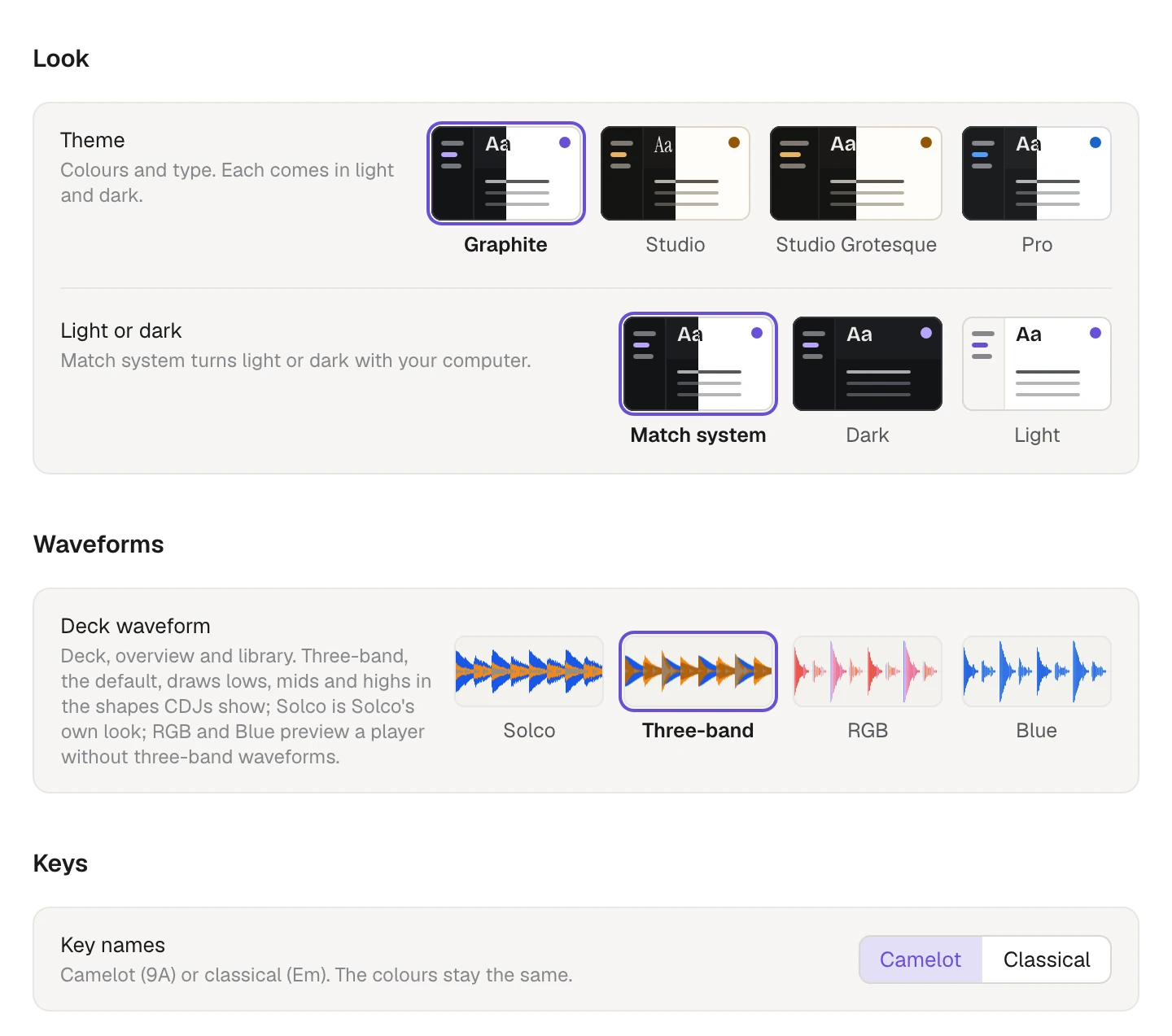
- Theme: Graphite, Studio, Studio Grotesque or Pro, each with its own colours and type, and each in a light and a dark version. Graphite, the default, is cool grey with violet; Studio is warm with amber and serif titles; Studio Grotesque is Studio's colours with Graphite's titles; Pro is neutral grey with blue.
- Light or dark: Match system, Dark or Light. Match system, the default, turns Solco light or dark with your computer, as soon as you switch it, in the theme you chose. Dark and Light keep one version whatever your computer does. The CDJs settings and your exports don't change.
- Deck waveform: Solco, Three-band, RGB or Blue, each shown as a short picture of how it draws. The deck, the overview above it and the waveforms in your library all follow it. Three-band, the default, draws the bass, mids and highs each at its own height, in the shapes CDJs show: blue bass, orange mids, a deeper orange where they overlap, and cream highs in front. Solco is Solco's own look, drawn from the same waveform, so nothing is analysed again. RGB and Blue preview what a player without three-band waveforms shows, in Solco's colours. Your exports don't change, and a look you chose before stays chosen.
- Key names: Camelot (9A) or Classical (Em), everywhere Solco shows a key. The key colours stay the same, and a search such as
key:8Aworks either way.
About
Your version and About this beta, A letter from Carmine, Check for updates, Install updates automatically, Previous version (after an update), Keep running in the background (Windows and Linux), Send error reports, the Keyboard shortcuts, a link to this help centre, Report a problem and Logs › Show folder, for sharing a local log manually. See "Updating Solco", "Going back to the previous version", "Privacy, error reports and diagnostics" and "Keyboard shortcuts".
Closing the window and quitting
Closing Solco's window doesn't quit Solco. Your music keeps playing, and analysis, music folder checks and exports carry on. Reopen the window to return to the same track; your keyboard's media controls still work while it is closed.
- Mac: Solco stays in the Dock with its dot underneath. Click the Dock icon to bring the window back. To quit, choose Quit Solco from the Solco menu or press ⌘Q.
- Windows and Linux: Solco's icon stays in the tray (the notification area on Windows). Its menu has Show Solco, what Solco is doing, such as "Analysing · 1,623 to analyse", and Quit Solco. To make closing the window quit Solco instead, turn off Keep running in the background in Settings › About. On a Linux desktop that shows no tray icons, closing the window always quits.
Quitting while a USB export, tags being written into your music files, a drive being prepared or another change is running asks first and names what is running, the same way from the tray, the menu or the shortcut: Keep working quits as soon as the work finishes, Quit anyway quits now. Analysis doesn't ask: it stops after the track in progress and carries on the next time you open Solco. Nor do the keys Solco writes into your files in the background: Solco finishes the few files in hand, then quits, and writes the rest next time.
Opening Solco twice
Solco runs once. Starting it again brings the window you have open to the front, or opens it again if you closed it, and any files you started it with go to that window, as if you had dropped them on it.