Solco keeps most of what it learns about a track in its library: beatgrids, cues, loudness, the style, mood and energy readings. A few things belong in the files themselves, because other apps and players read them from there.
What Solco writes
- Its ID tag, when a folder is scanned, so it can follow a file that is moved or renamed.
- Tags you choose: anything you change with Edit tags… (Ctrl+E, or Command+E on macOS) and the catalogue matches you apply in Tags. Nothing from the catalogue is written until you apply it.
- The key: once Solco has analysed a track, it writes the key it uses into the file's key tag.
- Style and character in the comment, only when you ask: right-click tracks and choose Write style tags to comments… to put each track's style, its characteristics and its gain into the file's comment, such as
style:Deep House energy:62 drive:58and so on, ending withgain:+1.5dB, for apps that only read tags. The review says how many files change and how many of your own comments it would replace, and nothing is written until you click Write 12 comments (it says how many).
Every write changes a copy of the file first. Solco checks that the audio in the copy is exactly the same as before and that the original hasn't changed meanwhile, and only then puts the copy in its place. Only the tags it was asked to change are written; your other tags and covers stay as they were.
Keys
Solco works out each track's key itself and writes it into the file, so your other apps and players see the same key. A key you type in Edit tags… always wins, and that is the key written.
- The file gets the standard notation other apps read, such as
Am,F#orEbm, whichever Key names you choose to see in Solco. - A file whose tag already names the same key, in any notation such as
8AorAm, is left alone. - Keys are written in the background after analysis, a few files at a time, and never while analysis, a scan or an export is running. The first time, Solco catches up with the tracks it has already analysed; Activity shows Writing keys to files as one job, with how many files are done, a progress bar and, once it has measured a while, about how long is left. While something else has the library it shows as paused and says why.
- If you quit Solco while it is writing keys, it carries on by itself the next time you open it. Nothing needs your attention.
- When an update improves how Solco reads keys, it reads every track's key again in the background, keeping all its other analysis, and writes the files whose key changed. A key you typed is never replaced.
- The track on the deck and the track you are editing wait for a later turn.
- If a file can't be changed, for example because it is read-only or on a network drive that is offline, Solco leaves it as it is and keeps using its key for that track inside Solco and on your exports. At the end, Activity shows one item under Needs you that counts them by reason, such as "3 files couldn't be written: 2 read-only, 1 missing". Show lists the files. Solco tries them again the next time it starts.
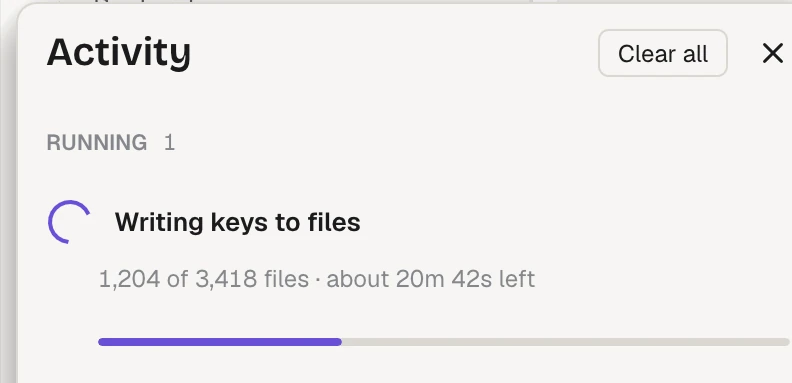
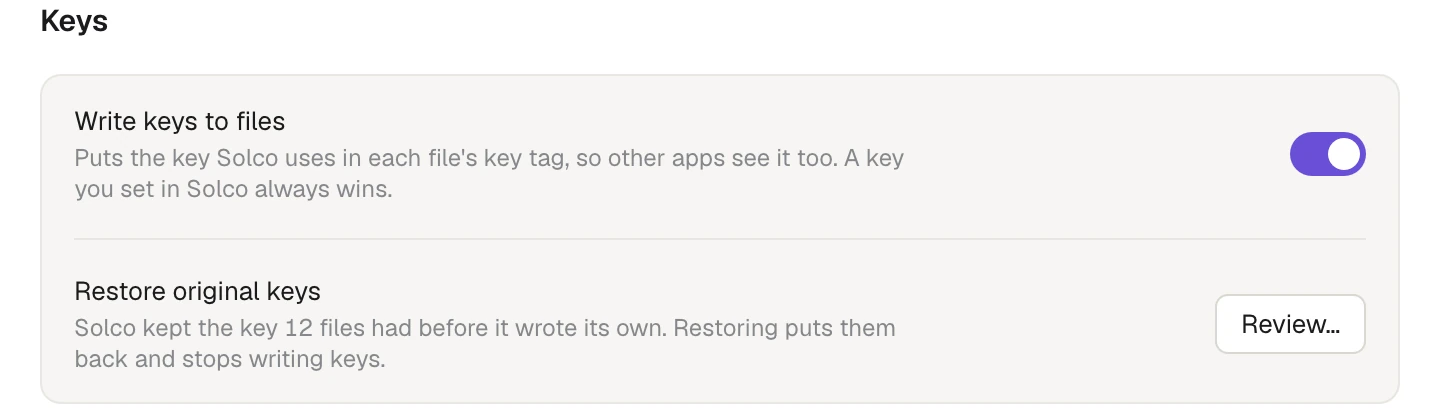
Turn Write keys to files off in Settings › Analysis to stop. Solco shows and exports the same key either way.
Putting your files' own keys back
Before Solco changes a file's key the first time, it keeps the key the file had. Edit tags… shows it under the key, for example "Before Solco: 5A".
To put them back, open Settings › Analysis, and under Restore original keys click Review…. Solco lists every file it will change, with its key now and after. The button that confirms says how many, such as Restore 12 keys: it writes each file's own key back exactly as it was. This also turns Write keys to files off, so Solco doesn't write its key again. Keys you set yourself in Solco stay, and files that are missing or on a drive that isn't connected are kept for later.