Solco is in private beta. Anyone can download it, but it works only with a licence key made for you. DJs get keys in small groups from the Solco waitlist, and new builds come out often. It is unfinished software: keep a backup of your music and your Solco library, and use a spare USB drive for your first exports.
Your licence key
Your key arrives by email. It is yours alone, tied to your email address, and works on up to three of your computers. The beta is free. When the full release comes out, Solco costs €149, or €99 at launch, and Solco Intro €29, each with 12 months of updates; your copy keeps working after that. Another year of updates costs €49, or €19 for Intro.
The first time you open Solco, it asks for the key:
- Copy the whole key from the email. It is one long line starting with
SOLA1. - Paste it into Paste your licence key and click Activate.
Activating needs the internet once: Solco tells its server that this computer uses the key. A key works on up to three computers; on a fourth, Solco says so, and hello@getsolco.com can move it for you. After that, Solco checks the key on your computer and never needs the internet to start. Your library is not opened or changed until the key is accepted: if Solco already has a library on this computer, everything in it is still there afterwards. No key yet? Click No key yet? Join the waitlist.
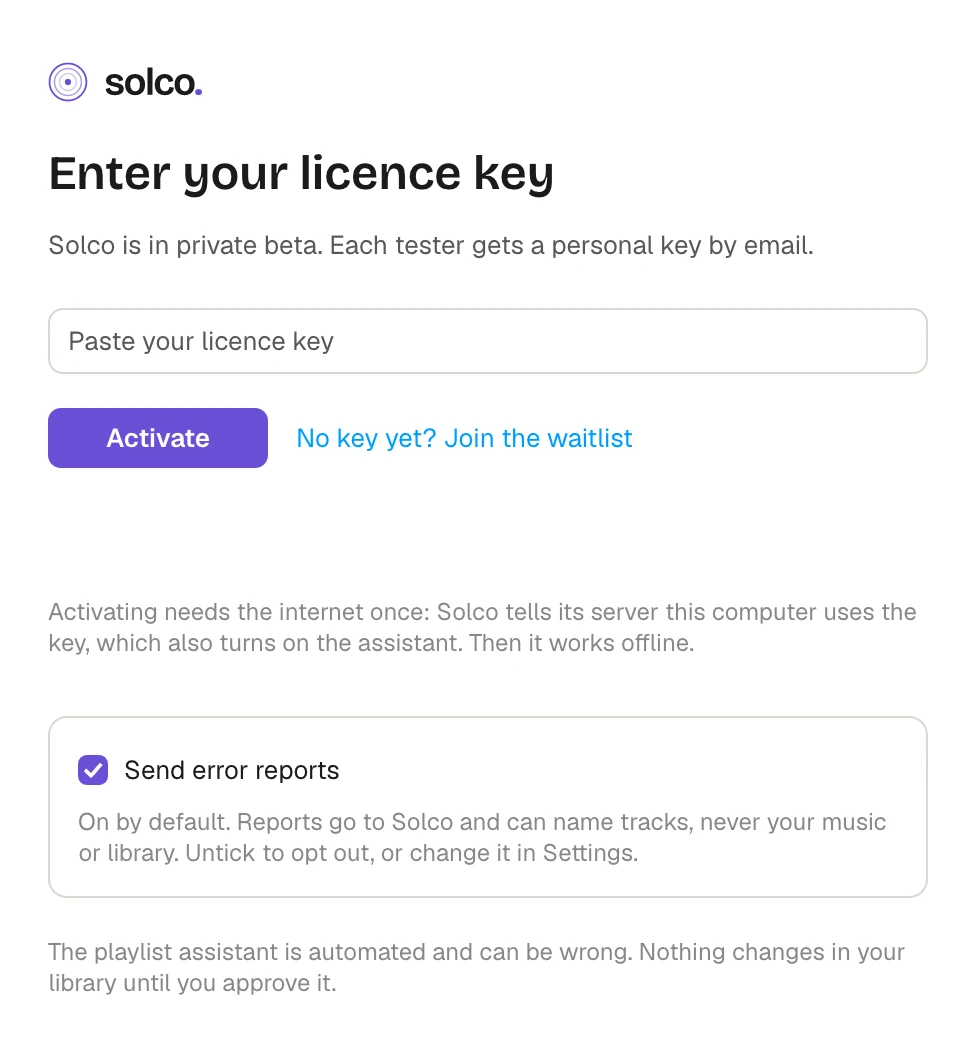
The same key turns on the playlist assistant: there is no separate code. See "Privacy, error reports and diagnostics".
The first time a key is accepted on a computer, Solco shows a short letter from Carmine, who makes Solco, beside four steps on how Solco works. Read it again any time from Settings › About › A letter from Carmine.
On the command line, solco licence --activate key.txt enters a key saved in a file, and solco licence shows who the key is licensed to and until when.
Your three computers
Each computer you activate the key on takes one of its three places. Solco recognises a computer it has seen before: reinstalling Solco, deleting its data folders or entering the key again on the same computer keeps the same place. Reinstalling Windows or Linux itself, or moving to a new computer, takes a new one; a Mac keeps its place even after macOS is reinstalled.
To free a place, for example for a computer you no longer use, write to hello@getsolco.com from the address your key was sent to and say which computer to free. The Solco team frees it, and you can then activate the key on another computer. Freeing a computer stops the playlist assistant there, but Solco keeps opening on it with the saved key until the key ends.
How long it lasts
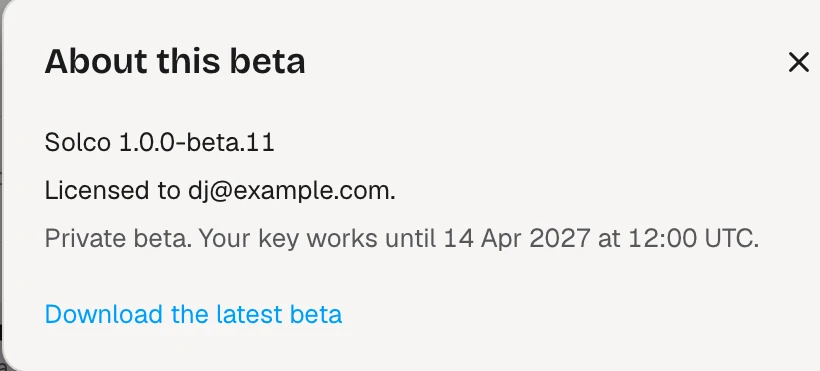
Builds don't expire, and your key renews itself while your licence is active: when Solco is online it quietly fetches a refreshed key with a later end date, sending nothing more than when you activated. Offline, your key keeps working until its current end date. To see the date, open Settings › About and click About this beta: it shows your version, who the key is licensed to and until when, and a link to download the latest beta. New betas bring fixes, so update when one is out: see "Updating Solco".
If your key comes within seven days of its end, because Solco has been offline or your licence itself is ending, Solco reminds you under the title bar. Connect to the internet so Solco can renew it, or reply to your licence email for a new key.

When a key ends or is revoked
When your key ends, Solco opens to the first screen again and says why. Your library waits, untouched, until you enter a new key. USB drives you exported keep working on your players, and solco backup still saves a library backup from the command line.
The Solco team can revoke a key, for example one that was shared. With Check for updates on, Solco downloads the team's signed list of revoked keys along with its update check, and a revoked key stops working the next time Solco starts, never in the middle of a session. Offline, or with update checks off, a key keeps working until its end date.
Error reports are your choice
Send error reports starts on. Solco sends a report when something goes wrong, so it can be fixed: it can name tracks, but never contains your music, your library or your user folder's name. Untick it on the first screen to opt out, or turn it off any time in Settings › About. With it off, Solco keeps a crash report on your computer and asks the next time it starts. Your saved choice is kept when you update Solco or enter a new licence key. See "Privacy, error reports and diagnostics".
If the dates look wrong
Solco checks the computer's clock, so a clock set back by accident can't stretch a key. If it was set wrong, correct it in your system settings, then click I’ve corrected the clock in About this beta. This does not change your key's end date.